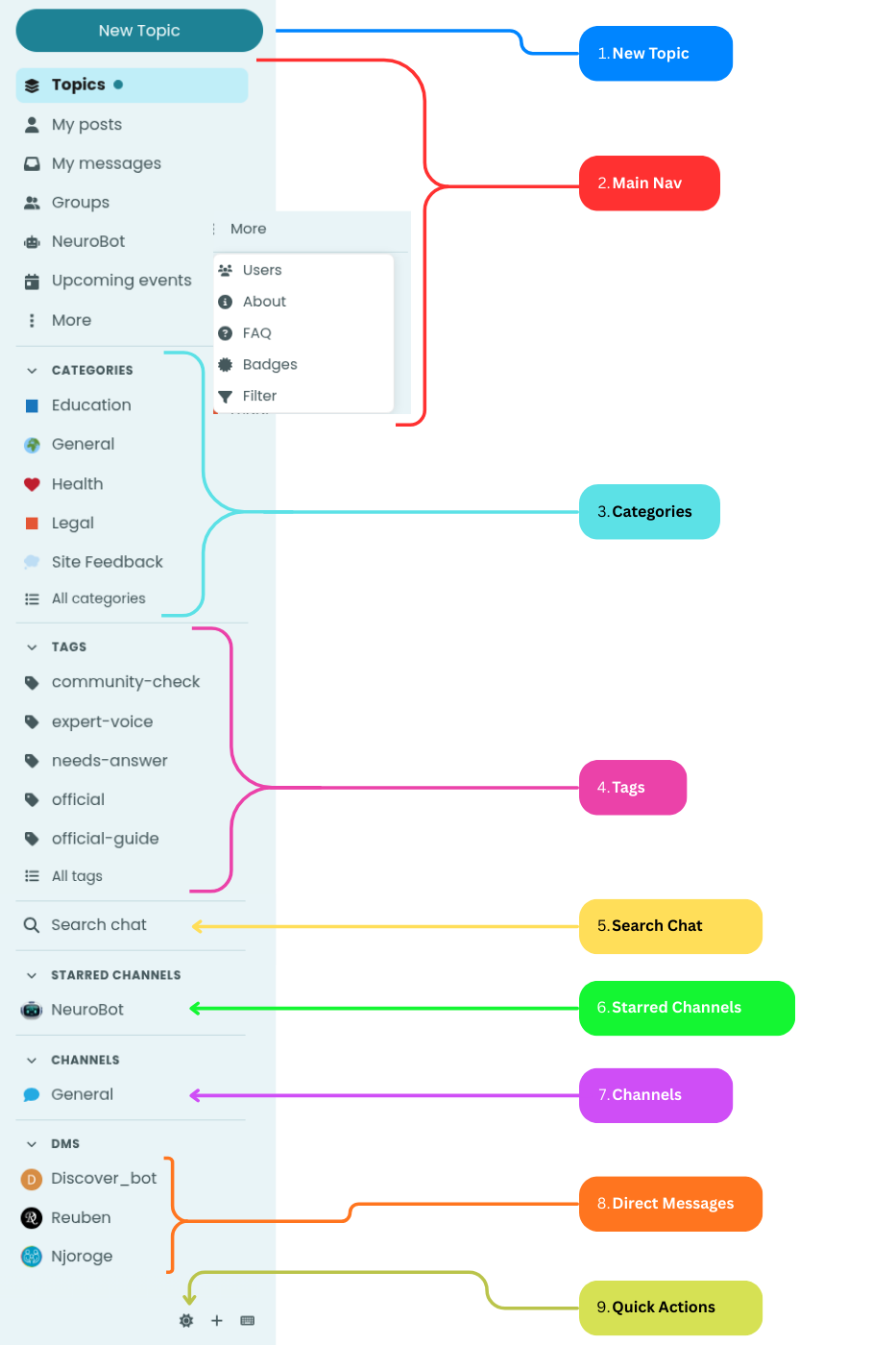
1. New Topic
Start a new discussion! Click this button to create a post. Choose a category, add a title, write your content, and share with the community.
2. Main Nav
Your quick access menu. View all Topics, check My Posts, read My Messages, browse Groups, chat with NeuroBot, see Upcoming Events, or explore More options like Users, About, FAQ, and Badges.
3. Categories
Browse discussions by topic. Categories help organize content into areas like Education, General, Health, Legal, and Site Feedback. Click All Categories to see everything.
4. Tags
Find posts by keyword. Tags like community-check, expert-voice, needs-answer, official, and official-guide help you discover specific content. Click All Tags to explore more.
5. Search Chat
Looking for a conversation? Search through your chat history to find messages, channels, or direct message threads quickly.
6. Starred Channels
Your favorites! Starred channels (like NeuroBot) appear here for quick access. Star any channel by clicking the  icon to pin it to this section.
7. Channels
Public chat rooms for group conversations. Join channels like General to discuss topics in real-time with the community.
8. Direct Messages
Private conversations. Chat one-on-one with members or AI assistants like Discover_bot. Your DM history appears here for easy access.
9. Quick Actions
Customize your experience! Use these icons for Color Mode ( switch between light/dark themes), Add Custom Section (+ organize your sidebar), and Keyboard Shortcuts (
 navigate faster with hotkeys).
 Understanding the User Menu
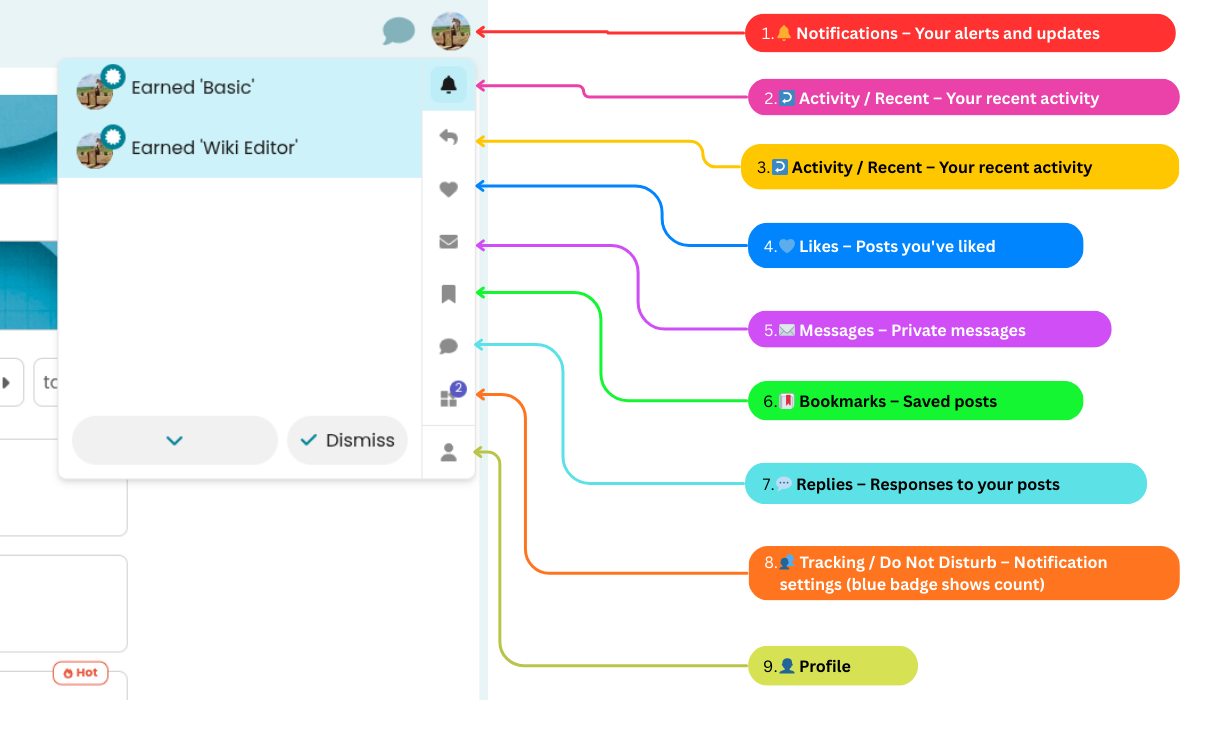
Click your avatar to access notifications, messages, bookmarks, and your profile settings. Here’s a visual guide:
User Menu - Quick Access Icons
User Menu - Profile Options
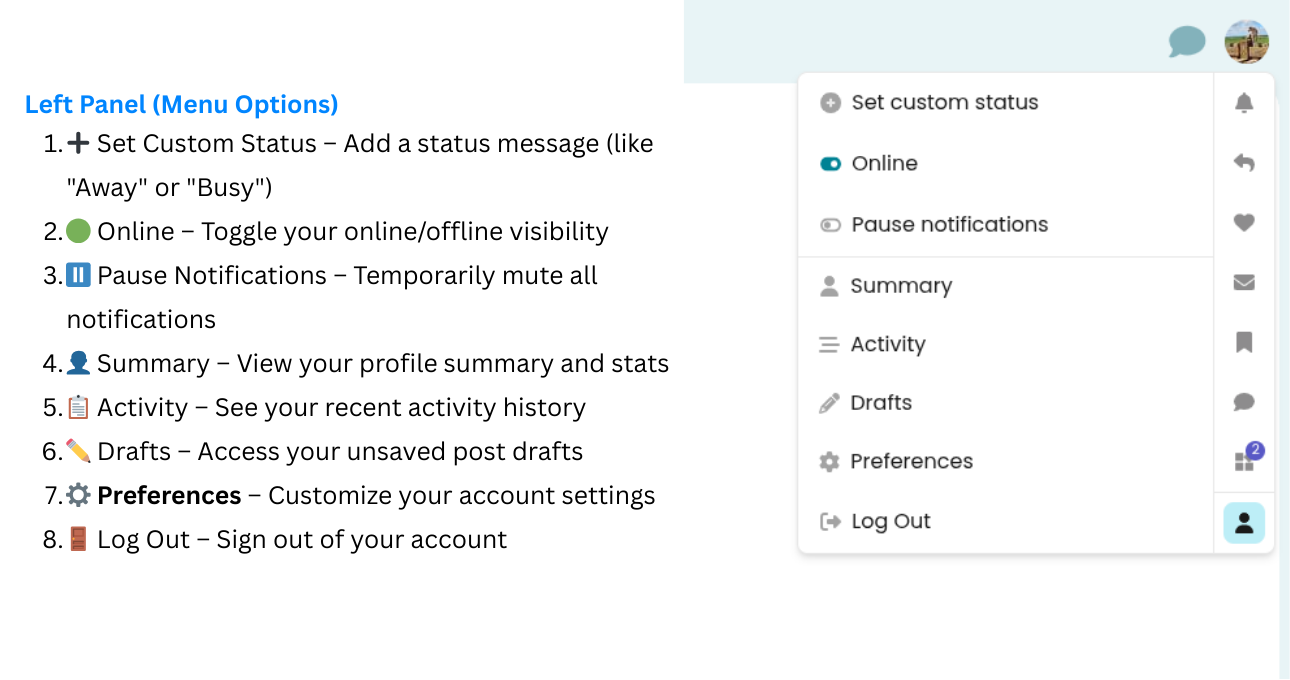
Tip: Use the Pause Notifications feature when you need uninterrupted focus time!